Connect your tracker
Point BugCapture at Jira, Linear, GitHub, ClickUp, Notion or Slack.
Connecting a tracker is a one-time setup per person, in Settings → Integrations. Every integration is free on every plan — nothing about filing to a tracker is gated by tier.
The general shape
Every tracker connects the same way:
- Open Settings → Integrations and pick the tracker.
- Paste a credential — a personal access token, an API key, or (for Slack) a webhook URL. The exact one is on each tracker's page: Jira, GitHub, Linear, ClickUp, Notion, Slack.
- Test connection. This confirms the credential works before you rely on it — no bug ever fails to file because a token quietly expired weeks ago.
- Pick a default destination — a project, a repo, a team, a database or a channel, depending on the tracker.
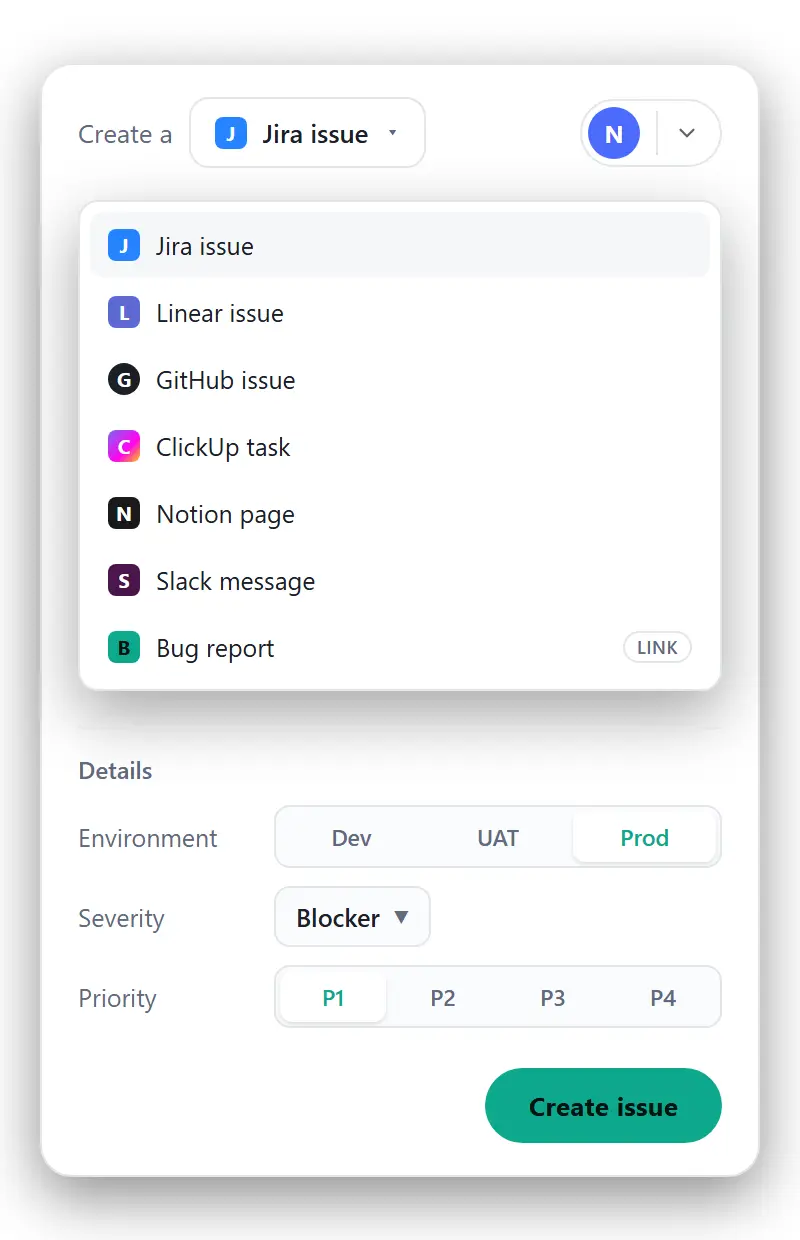
From then on, filing a report is **Create a → [tracker] issue** in the capture editor or the report view — one click, no re-typing.

Credentials are per person, not per workspace
Each teammate connects their own account. A workspace doesn't share one shared token across everyone, which means:
- Issues are created as you — attribution in the tracker is real, not a shared bot account.
- Disconnecting is individual. Someone leaving the team doesn't break filing for everyone else.
- A credential is write-only from BugCapture's side — once saved, it's never displayed again, only replaced or disconnected.
What's attached automatically
Whichever tracker you file to, the created issue carries the same evidence: the annotated screenshot (or recording), console and network trace, environment, and a link back to the full report — so opening the tracker issue is never the first time an engineer sees the details.
If your tracker isn't listed
Book a demo and we'll scope a custom integration with you.